
MSIX Publisher Certificate Mismatch: Fix Error 0x8007000B
Diagnose MSIX signing error 0x8007000B using Event IDs 150, 151 and 152. Check the publisher, signing certificate and package hash before rebuilding.
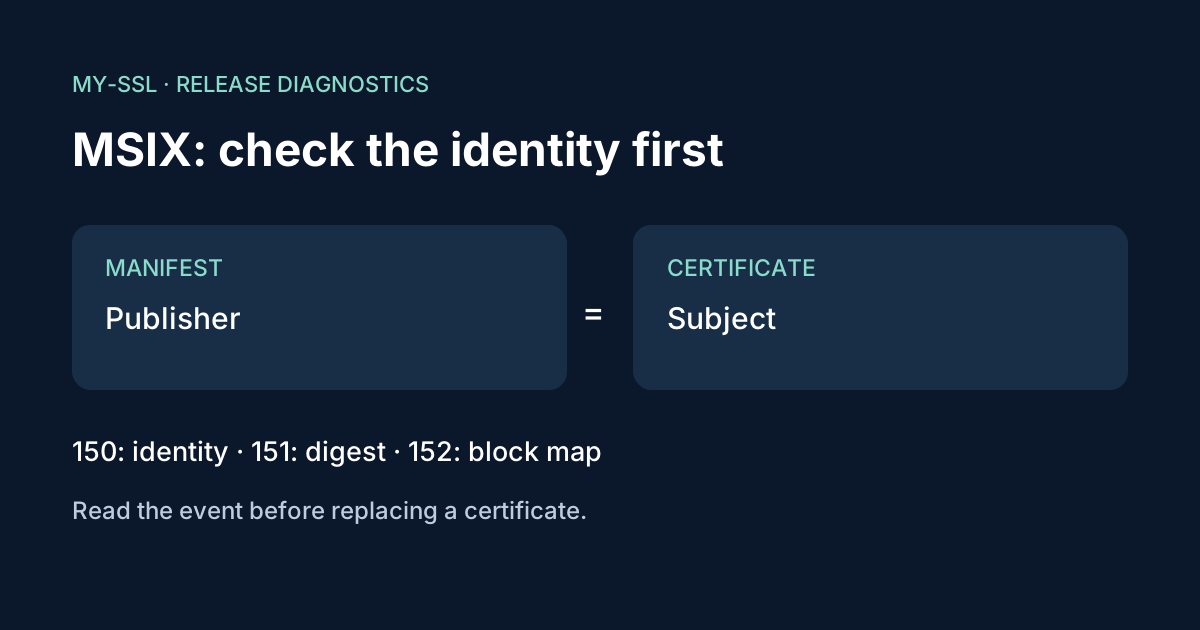
An MSIX publisher mismatch happens when the Publisher value in AppxManifest.xml does not exactly match the signing certificate's Subject. But error 0x8007000B alone does not prove that mismatch: Microsoft also associates it with a wrong signing hash algorithm and a package that fails block-map validation. Read the AppxPackaging event first, then fix the condition it names.[1]
This guide is for developers troubleshooting an MSIX or AppX signing attempt. It is not a certificate purchasing checklist or an end-to-end signing tutorial. The inspection commands are based on Microsoft's documentation; they have not been executed against a Windows package in this editorial review.
Start with the event, not a replacement certificate
Open Event Viewer with eventvwr.msc. Under Applications and Services Logs, open Microsoft → Windows → AppxPackagingOM → Microsoft-Windows-AppxPackaging/Operational. Find the event recorded at the time of the failed signing attempt.[1]
| Event ID | What to investigate | First corrective step |
|---|---|---|
| 150 | Manifest Publisher and certificate Subject differ | Compare the full values, not just the business name |
| 151 | SignTool hash differs from the package block-map hash | Match the /fd algorithm to the block map |
| 152 | Package contents do not validate against the block map | Rebuild the package from the intended source |
Keep the full event message with your build record. A screenshot containing only the final hexadecimal error omits the information that separates these cases.
Event 150: compare the complete publisher identity
Microsoft's example contrasts a manifest publisher of CN=Contoso with a signing certificate subject of CN=Contoso, C=US. Those values are not interchangeable.[1] Check the actual AppxManifest.xml used to build the failed package, not an older copy in a different output directory.
For a certificate in the current user's Personal store, Microsoft's troubleshooting guidance uses this PowerShell inspection pattern:[4]
(Get-Item 'Cert:\CurrentUser\My\REPLACE_WITH_CERTIFICATE_THUMBPRINT').Subject
Replace the placeholder with the thumbprint of the certificate actually selected for signing. This is a public certificate identifier, not a PIN or a private key. If your signing process uses another store or a provider-specific certificate selection mechanism, inspect that actual certificate instead.
Compare the returned Subject with the manifest's Identity Publisher attribute. Microsoft's package-signing example is:
<Identity Name="Contoso.AssetTracker"
          Version="1.0.0.0"
          Publisher="CN=Contoso Software, O=Contoso Corporation, C=US" />
This is an illustrative identity fragment, not a replacement manifest. The important part is that the full Publisher must match the certificate Subject.[2] Do not shorten it to the display name or guess a subject from the order confirmation.
For a new test package, correct the source manifest or select the intended matching certificate, then package again. For an application already distributed to users, stop before changing its established publisher identity: review the application's update and distribution requirements with the release owner. Fixing the signing error is not, by itself, evidence that an existing installation will accept the next release.
Event 151: check the package's own hash algorithm
A publisher match will not solve a digest mismatch. Microsoft requires the algorithm passed to SignTool to match the one used when the package was built.[3]
Inspect AppxBlockMap.xml in an extracted copy of the package. Microsoft maps these HashMethod endings to SignTool algorithms:
| HashMethod URI ending | SignTool /fd value |
|---|---|
xmlenc#sha256 | SHA256 |
xmldsig-more#sha384 | SHA384 |
xmlenc#sha512 | SHA512 |
The full URI for SHA-256 is http://www.w3.org/2001/04/xmlenc#sha256. MakeAppx's default packaging algorithm is SHA-256, but inspect the artifact rather than assuming your build used the default.[3]
Change the signing configuration to match the package. Do not edit AppxBlockMap.xml to make an existing package appear consistent.
Event 152: rebuild rather than patch the packaged output
Microsoft's prescribed response to block-map validation failure is to rebuild the package.[1] Keep the failed artifact for diagnosis, correct the packaging inputs, and generate a fresh output. A signing retry is useful only after the underlying package problem has been addressed.
For certificate selection problems, Microsoft also documents placing /debug directly after the SignTool sign command.[1] Review debug output locally and remove sensitive paths or identifiers before sharing it. Debug output is diagnostic evidence, not proof that a certificate product supports your chosen hardware, cloud service or unattended build process.
What to verify before releasing the fixed package
Use a separate release check, not just the absence of the original error:
- Confirm the rebuilt artifact uses the intended manifest and certificate.
- Confirm the signing digest matches the package block map.
- Verify the final package signature using your supported Windows tooling.
- Test installation on a representative clean target. For an update, test upgrading the existing installation too.
- Check the distribution channel's requirements independently of the local signing result.
A self-signed certificate can be useful in a controlled test environment. Microsoft notes that users must install and trust that certificate before running such an application.[2] Asking customers to trust an arbitrary test certificate is not a substitute for a planned production trust model.
Frequently asked questions
Does 0x8007000B always mean the certificate is wrong?
No. Microsoft's documented causes include publisher mismatch, digest mismatch and package block-map validation failure. Use the associated event to distinguish them.[1]
Can I fix a publisher mismatch by renaming the certificate file?
No. The relevant value is the Subject inside the certificate, not the filename. Compare it with the manifest Publisher.[2]
Do I need to buy another certificate immediately?
Not necessarily. You may have selected a different installed certificate or built a manifest with the wrong Publisher value. Establish which identity the application must use before considering reissuance or a new purchase.
Does successful signing guarantee deployment will work?
No. Treat signature verification, target-machine trust, installation and update testing as separate checks. This guide does not certify a particular package or signing product.
Need help identifying the next step?
Ask My-SSL a certificate question with the event ID, Windows SDK version and intended distribution method. Include the certificate Subject only if appropriate for the support channel. Never send a private key, token PIN or cloud-signing credentials.
Sources
[1] Microsoft: Known issues and troubleshooting with SignTool
[2] Microsoft: Create a certificate for package signing